
By the Connecting Odds Editorial
Key takeaways
- You can check your website security for free in about five minutes, using only passive checks that read what any visitor can already see.
- Check in order: HTTPS, security headers, exposed files, blocklist flags, then email records.
- A good result means the outside looks right. It does not prove the site is secure, because no free check can see server files, passwords, or application logic.
- Raksha's free scan runs all of these checks at once in under 60 seconds, read-only, with no card.
You can check your website security for free in about five minutes, using only passive checks that read what any visitor can already see. Start with HTTPS and security headers, then check for exposed files, then check whether Google or any blocklist has flagged the site. No free check proves a site is secure, and a good grade does not mean you have been hacked or are safe. This guide gives you the checks in order, the exact commands, and what each result means, then shows you how to run all of them at once with one free Raksha scan.
What a free website security check can tell you
A free check reads what a visitor can already see: whether the site serves HTTPS, which security headers it sends, whether files that should be private answer to a request, whether a blocklist has flagged the domain, and whether the domain publishes the email records that stop spoofing.
What it cannot do is just as important. It cannot log in, read the files on your server, test your application logic, or tell you whether a password is weak. A missing security header is a missing layer of defence, not proof that someone can already run script in your users' browsers. A clean result is a good first check, not a verdict.
The 5-minute check, in order
Work through the list in this order. The first two checks take a minute and catch the most common problems.
1. HTTPS. Open the site and look for the lock in the address bar, then check the certificate itself:
curl -sI https://example.com
openssl s_client -connect example.com:443 -servername example.com
The first command shows the response headers. Look for strict-transport-security in the list. The second shows the certificate: who issued it, when it expires, and which TLS version the server negotiates. TLS 1.3 is current and TLS 1.2 is still acceptable. TLS 1.0 and 1.1 were deprecated and should be disabled.
Take a small online shop the night before a launch. The owner runs the two commands above and finds the certificate is due to expire within days. That is a five-minute renewal before launch, and a broken site after it if the renewal had waited. The check is worth doing the night before, not the morning after.
2. Security headers. The same curl -sI output tells you which headers the site sends. Look for these five:
content-security-policy(CSP), which says which scripts may loadx-frame-optionsorframe-ancestors, which say whether the page may be framedx-content-type-options: nosniff, which stops the browser guessing a file's typereferrer-policy, which controls what the browser sends to other sitespermissions-policy, which switches off browser features the site does not use
A missing CSP is the most common gap. It does not mean the site is already compromised. It means one layer of defence is absent, and it is usually a short fix.
3. Exposed files. Some of the worst breaches start with a file that should never have been downloadable: a configuration file with a password, a backup left in the web root, a version-control folder with the site's history. Check the usual paths:
curl -sI https://example.com/.env
curl -sI https://example.com/.git/HEAD
curl -sI https://example.com/wp-config.php.bak
curl -sI https://example.com/backup.zip
Expect 403 or 404. A 200 needs a closer look, because it may mean the file is really there. One warning: a 200 with a home-page-sized body is usually a catch-all page, not a leak. Check the size and the content before you panic.
4. Blocklist flags. Check whether Google has flagged the site, and if you own the site, check Google Search Console under Security Issues. A flag there means Google has seen something bad, even if the site looks clean to you. Hacks often hide from the owner and show only to search engines or phones.
5. Email records. Spoofed email is a website problem too, because it rides on your domain. Check the records:
dig TXT example.com
dig TXT _dmarc.example.com
The first should show an SPF record. The second should show a DMARC record. A missing DMARC record means anyone can send email that claims to be from your domain, and there is nothing to stop them.
What a free scan cannot see
No remote check, free or paid, can see the files on your server. It cannot tell you whether a plugin is patched if the site does not advertise a version, whether a backup actually restores, whether two-factor authentication is switched on, or whether the code has a logic flaw that only shows up when a real user does something unexpected.
That is the honest limit of this whole guide. A free check answers the question "does the outside look right?" It does not answer "is my site secure?" Anyone who tells you otherwise is selling something.
A freelance developer puts it this way to clients: the free check is the outside of the house. It can tell you the windows are locked and the roof looks sound. It cannot tell you whether the safe is locked or whether the spare key is under the mat. When a client asks why a clean result is not a guarantee, that is the answer.
How to read your Raksha score
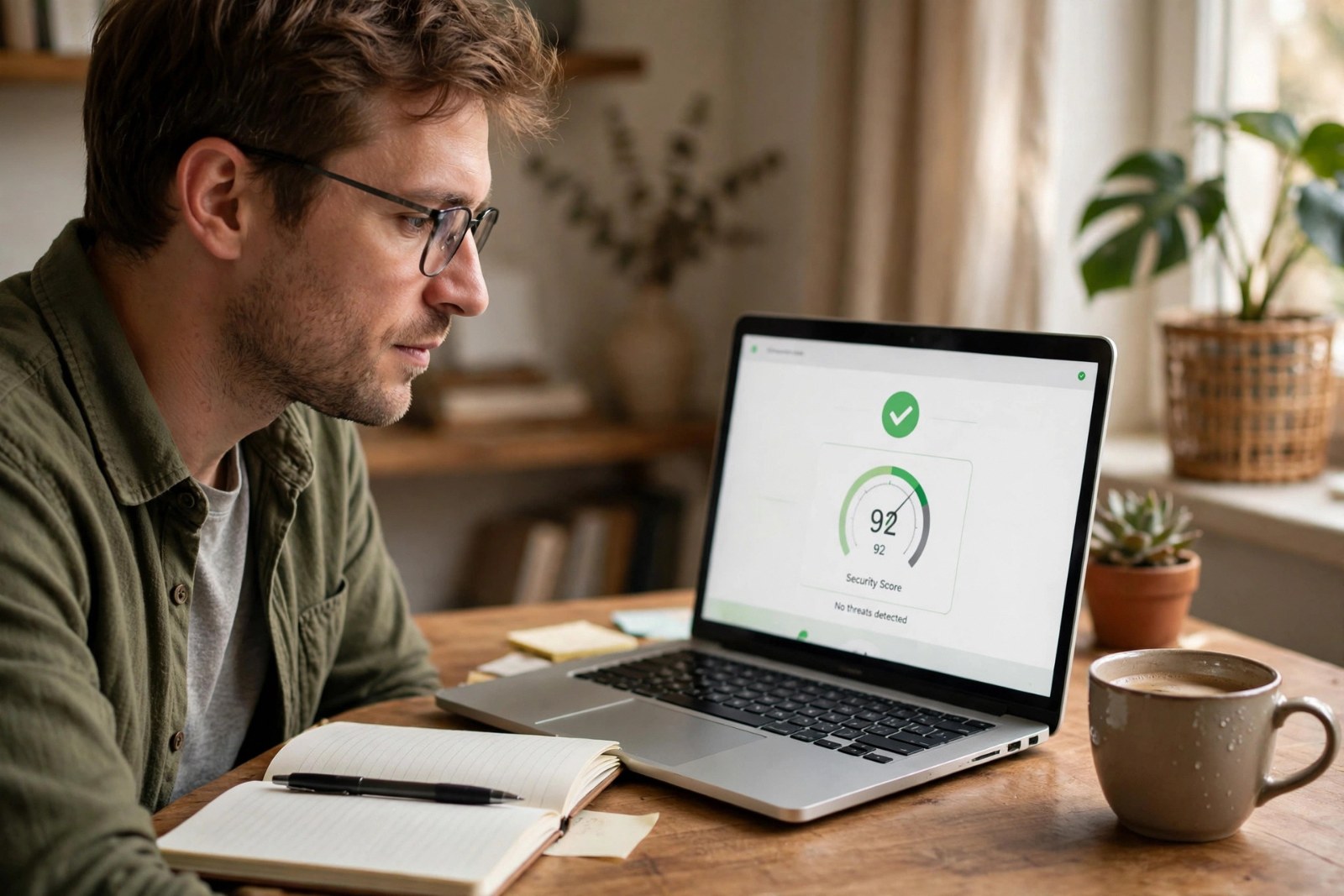
Raksha's free scan runs the checks above, plus about 35 more, in under 60 seconds. It is read-only: it never fuzzes, exploits, or tries to bypass authentication on your target. The result is a Security Score that starts at 100 and drops by weighted penalties for every finding. Critical issues cost the most, informational notes barely register, and the same input always produces the same score, so you can track progress across scans.
The free scan gives you the score, a severity breakdown, and your four most urgent findings. The full report, every finding with evidence and a fix, costs $19 for a single scan, and monitoring starts at $29 a month.
Raksha's free scan also returns an AI Visibility Score, which measures whether AI assistants can find and cite your site. That is a different question from security, and it matters because AI answers are now where many people first meet a site. Our guide to why SEO, AEO, and GEO matter in the age of AI search explains the difference.
How often to repeat the check
Monthly, and after every change. A new plugin, a new page, a new integration, a certificate renewal, or a migration can all change the result. A check you ran in January says nothing about the site in June.
If you run a site that takes payments or personal data, monthly is the minimum. Raksha's Solo plan, from $29 a month, re-runs the scan on a schedule and alerts you when something new appears, which is the practical way to keep the routine without remembering it.
A bakery with a WordPress site learned this the ordinary way. The site was checked when it launched, then left alone for a year. In that year the bakery added an online ordering plugin, a chat widget, and a new contact form, and the certificate renewed itself twice. None of those changes was checked. A monthly check would have caught the plugin's missing header the week it appeared, instead of a year later when the owner finally ran the scan again.
What to fix first
Fix in this order:
- Exposed files first. If a
.envor backup file answers, rotate the secrets that were in it first, then block the path. Blocking the file does not undo a leak. Someone may already have read it. - HTTPS problems next. An expired certificate or a broken redirect chain is visible to every visitor.
- Security headers after that. Start with CSP in report-only mode, then enforce it once you know nothing breaks.
- Email records. Publish SPF and DMARC if they are missing.
- The routine jobs. Switch on two-factor authentication everywhere you can, and test that a backup actually restores.
Frequently asked questions
Is it legal to scan my own website? Yes. Scan only sites you own or have written permission to test. Scanning someone else's site without permission can be a legal problem, and a free scanner is not a permission slip.
Does a good score mean my site is secure? No. It means the outside looks right. A good score cannot see server files, passwords, or application logic, so it is a starting point, not a security position.
How often should I check? Monthly, and after every change to the site: a new plugin, a new page, a new integration, or a certificate renewal.
Do I need to install anything? No. The commands above use curl, openssl and dig, which are already on most computers. Raksha's scan runs in the browser with nothing to install and no card required.
What should I do first if a check fails? Fix exposures first. If a file that should be private answers to a request, rotate any secret that was in it before you block the path, because blocking the file does not undo a leak. Then work through HTTPS, headers, and email records in that order.
Check your site with Raksha
The checks in this guide take about five minutes by hand. Raksha runs all of them, plus about 35 more, in under 60 seconds, and returns a score you can track across scans. The free scan is read-only, needs no card, and covers one verified target. Run a free security scan at Raksha to see where your site stands, or see the plans and pricing if you want monitoring, history, and the full report.
Discussion (0)
Read the conversation and share your perspective.
Join the discussion
Comments are open to everyone to read. Sign up or sign in to join in.
No comments yet. Be the first to share your perspective.